
Following MCP Study #1 (first call with Inspector), today I’m connecting to an actual LLM client — Claude Desktop.
Yesterday I only verified server behavior with MCP Inspector. Today’s goal is to actually call my server from Claude Desktop.
Table of contents
Open Table of contents
- Registering MCP in Claude Desktop — finding the config file
- Confirming registration — connectors menu
- Actually calling the tool — and my first encounter with the approval UX
- Cowork recommendation — a separate topic to study
- Adding a new tool → restart → instant recognition
- Question — how do you use RAG and MCP together?
- Retrospective
- Things to study further
Registering MCP in Claude Desktop — finding the config file
Claude Desktop automatically connects to any MCP server registered in claude_desktop_config.json. So all I need to do is edit this file correctly.
The problem is that it’s not obvious where this json file is at first (I struggled with this too).
How to find it
- Click the account icon in the bottom left → open the settings menu
- Click the “Developer” tab under the “Desktop App” section in the bottom left
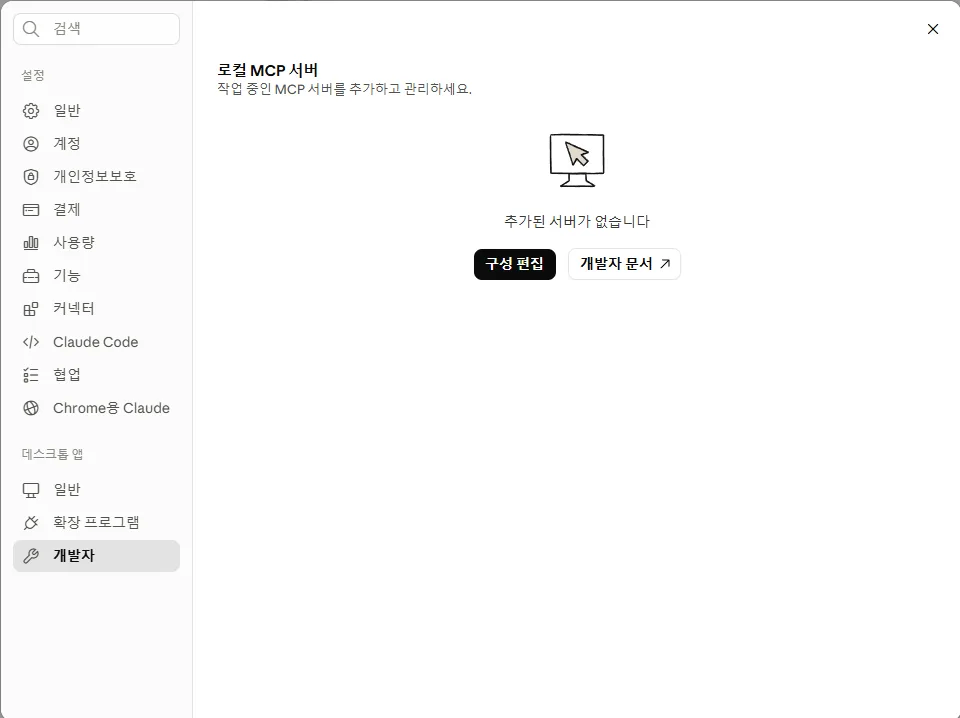
- Click the “Edit Config” button → a popup opens the folder containing
claude_desktop_config.json
Registering the server in the config file
In my case, I expected an empty file since I’d never registered an MCP server before, but there was already some cowork-related config in there. It seems Claude Desktop pre-populates this itself.
I added the command and args for my server:
{
  "mcpServers": {
    "energy-management": {
      "command": "python",
      "args": ["C:/path/to/energy_mcp_server.py"]
    }
  }
}
After saving, restart Claude Desktop.
Confirming registration — connectors menu
Check the list of registered MCP servers via the + button in the bottom left of the chat window → Connectors:
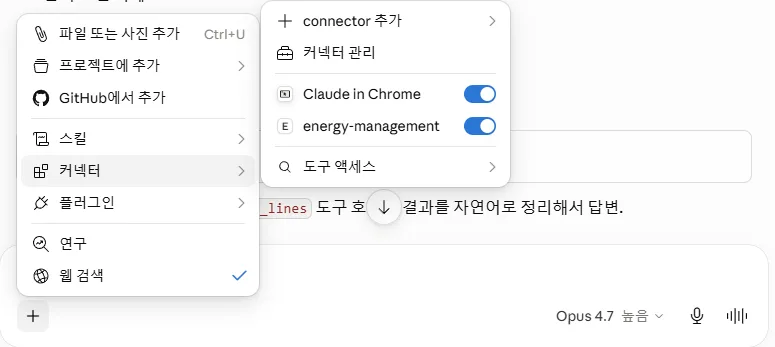
energy-management shows up exactly as I typed it in the json. I turn the toggle ON to activate it.
Actually calling the tool — and my first encounter with the approval UX
I typed “Show me the factory line list” into the chat window. Claude automatically tries to use the tool from the MCP server:
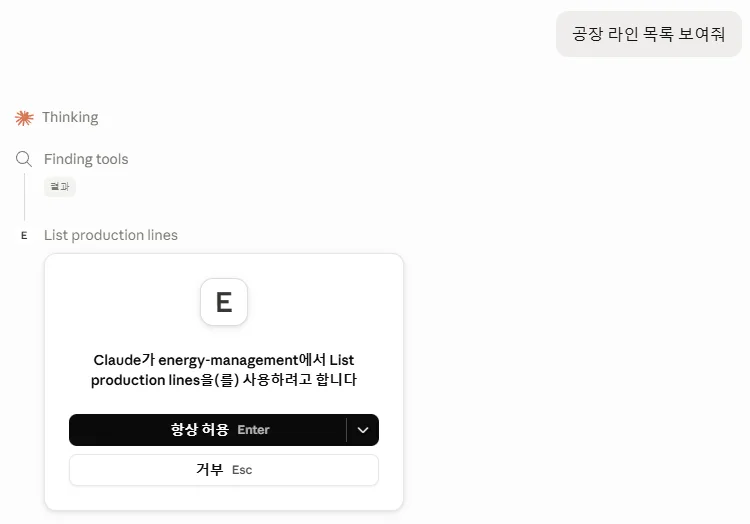
The interesting part — user approval is inserted into the tool call
“Claude wants to use List production lines from energy-management” + [Always Allow / Deny] buttons
This is exactly the client-side implementation of the HITL pattern I covered in LangGraph #3. Claude Desktop inserts a user approval gate right before the MCP tool call, on its own. I didn’t have to implement anything — the client itself provides this safety layer.
Once approved, it takes the result and formats a natural-language answer. The response quality is the same as what I verified yesterday with streamlit.
Cowork recommendation — a separate topic to study
While going through this, a banner popped up:
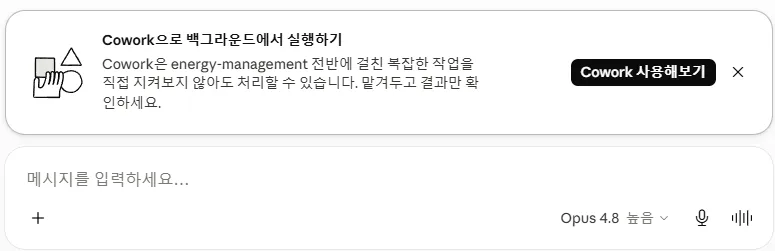
Claude recommended, “Why not try this in Cowork?” Cowork isn’t part of what I’m currently studying, so I’m leaving using MCP within Cowork as a separate track for now.
Adding a new tool → restart → instant recognition
I added a tool to the existing code and restarted Claude Desktop, and the new tool was recognized immediately. So the development cycle is simple:
Edit code → save → restart Claude Desktop → new tool available
Today’s study session wrapped up quickly. (Maybe it was deliberately light since it’s the weekend…)
Question — how do you use RAG and MCP together?
MCP turned out to be convenient, but there’s one thing that’s a bit unsatisfying — it doesn’t connect with the FEMS RAG I’ve already built.
- RAG → a separate backend that calls an API (bundled inside Streamlit)
- MCP → called directly within the Claude Desktop app
It feels like these are two separate worlds. Isn’t there a way to use both together?
The answer — wrap RAG itself as an MCP server
Thinking about it, the answer turns out to be surprisingly simple:
Just wrap the RAG search function with
@mcp.tool()and expose it as an MCP server.
@mcp.tool()
def search_fems_documents(query: str, top_k: int = 5) -> list[dict]:
    """Search for relevant chunks in the FEMS guidelines."""
    # Same existing RAG code — Chroma search → return chunks
    return rag_pipeline.search(query, top_k)
This way, when Claude Desktop receives a question:
- It decides whether a general answer is sufficient
- If domain knowledge is needed → it automatically calls
search_fems_documents - It responds using the retrieved chunk context + LLM reasoning
→ The user just uses Claude Desktop as normal, while RAG runs behind the scenes. Claude Desktop itself becomes the front end, with no need for a separate UI like Streamlit.
Retrospective
Today’s short study session, summarized:
- Finding
claude_desktop_config.json: Settings → Desktop App → Developer → Edit Config — it’s normal to be confused about where it is at first - Claude Desktop provides its own tool call approval UX — client-side HITL
- The development cycle is simple — edit code → restart → instant recognition
- The fix for the RAG ↔ MCP separation — wrap the RAG function with
@mcp.tool()
Things to study further
1. All the options in claude_desktop_config.json
- Additional options beyond
command/args, likeenv/cwd - Avoiding conflicts when registering multiple MCP servers at once
- Where the per-server enabled/disabled toggle lives
- The pattern of specifying a venv path via
cwd(automating the venv troubleshooting from #1)
2. RAG ↔ MCP integration patterns
- Auxiliary tools beyond
search_documents(query, top_k), likeget_chunk_by_id/list_collections - Whether Claude can chain multiple tool calls (search → augment → re-search)
- Returning search results as-is vs. having the LLM summarize them
- Whether to combine hybrid search (vector + keyword) into one tool or keep them separate
3. Client-side tool approval UX
- How a tool is managed after selecting “Always Allow”
- An option to force explicit confirmation every time for risky tools
- The division of labor between LangGraph’s server-side HITL and client-side approval
4. Cowork × MCP
- Permissions for MCP tool calls when Cowork runs in the background
- Autonomous execution without human approval vs. step-by-step approval
- Separate policies for risky tools
5. Resources / Prompts UX in Claude Desktop
- How Resources / Prompts covered in #1 appear in Claude Desktop
- The pattern of attaching a Resource URI directly in the chat window
- Whether prompt templates are exposed like slash commands
6. Debugging MCP servers
- Where to find Claude Desktop logs when the server dies or errors out
- Patterns for inspecting stdio communication payloads
- A first diagnostic checklist for when a tool doesn’t show up